Connect the first booking, the student record and the lessons that follow. RouteOS gives your school a shared view of where each student started, what they have completed and what needs attention next.
Alex’s refresher journeyLicensed driver · New York · Example
Driver license verified
2Refresher practice · 1 of 3 complete
3Practice goal ahead
One completed. One scheduled. One to book.
Illustrative workflow
From the school’s side
A licensed driver. One clear journey.
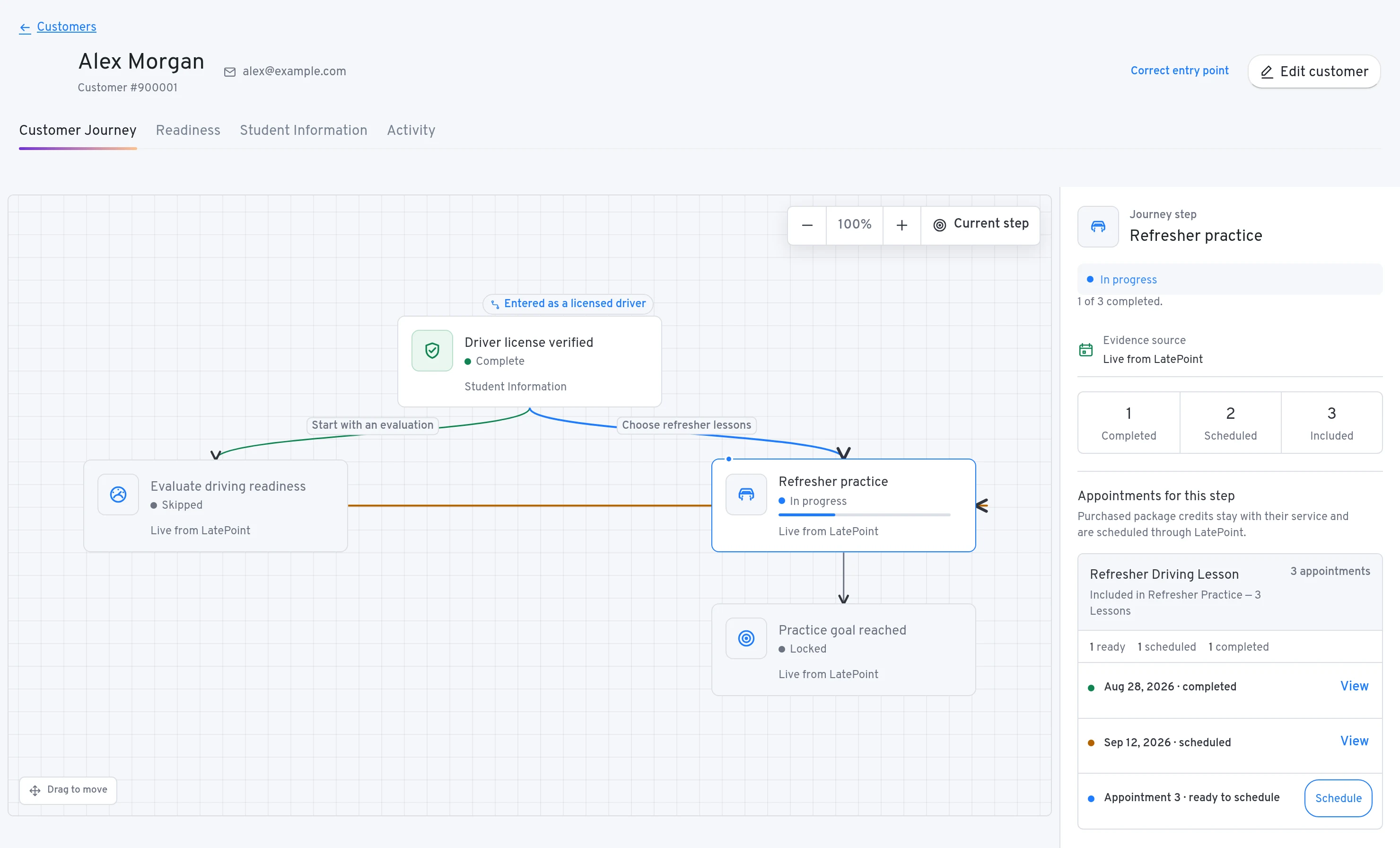
Meet Alex: already licensed, returning for a little more confidence behind the wheel. Here’s how the office sees a three-lesson refresher plan, with the journey map and purchased lessons together.
Enlarge backend view Actual RouteOS backend interface · Fictional student, package and appointments
Reading the counts: the top “Scheduled” total includes completed appointments. The package below separates one completed, one upcoming and one ready to schedule.
01
A relevant starting point
Alex enters as a licensed driver. The map shows license review, optional evaluation and refresher practice.
02
Purchased lessons in view
Open Refresher practice to see completed appointments, the next booking and the remaining included lesson.
03
Progress follows the lessons
As appointments are marked completed, the journey updates. Completing all three included lessons reaches the practice goal in this example.
Follow Alex, from first answer to final refresher.
Alex’s New York refresher journey brings the student’s starting point, staff license review and three purchased lessons into one record. Explore the handoffs below, then see how completed appointments move the practice plan forward.
Meet Alex where the journey begins.
Alex enters a ZIP Code and selects “I am licensed and want refresher practice.” RouteOS connects that answer to an eligible New York school location and the licensed-driver journey. The office sees a path through license verification, an optional evaluation and refresher practice.
School location
New York
Starting point
Licensed refresher practice
Journey entry marker
Entered as a licensed driver
A relevant starting point leads to relevant information and service choices.
Keep the license record and staff review connected.
Alex supplies current driver’s license information. Complete, valid information allows refresher scheduling while credential review remains a separate staff responsibility before the lesson. In this example, authorized staff have reviewed the record, so Driver license verified appears complete on the map.
Student Information
Current license details received
Staff review
Driver license verified
Evaluation
Optional for this path
The office can distinguish information supplied by Alex from a completed staff verification.
Make every purchased lesson easy to account for.
Alex has a three-lesson refresher package: one lesson complete, one scheduled and one ready to schedule. Select Refresher practice on the backend map to see those purchased appointments. The office can use Schedule on the remaining credit with the correct student and service already connected.
Completed lessons
1 of 3
Upcoming scheduled lessons
1
Ready to schedule
1 included lesson
The next appointment uses an existing package credit, so staff can see what Alex already owns.
Let completed lessons carry the journey forward.
After the next appointment is marked completed, Alex has two completed lessons and one still to schedule. Staff book that remaining included lesson. When all three are recorded as completed, the journey marks Practice goal reached complete. The goal tracks completion of the included practice lessons.
After the next lesson
2 completed · 1 ready to schedule
After the final lesson
3 of 3 completed
Practice goal reached
Complete
Recorded appointment completion updates the same journey the student and office follow.
Illustrative example. Explore each step to see how the workflow connects. This demonstration does not change any school records.
One workflow. A clearer day for everyone.
For students
My Journey shows the current stage, the steps ahead and eligible booking actions. Initial booking asks for information appropriate to that stage. Later document follow-up appears in the account when the school opens a request, with only the currently required student fields to complete.
For the office
Move between the journey, purchased appointments, Student Information and a dated readiness checklist. Requirements lead to the relevant record section. Authorized staff can review information, schedule an included credit and see who changed the record.
For instructors
Appointment completion contributes to the same journey the office uses. Instructors work with the records and actions permitted by their school’s assigned roles and student scope. A lesson becomes progress when its completed status is recorded.
Built around your school’s rules.
01
Different starting points. Different paths.
Permit preparation, an existing permit, completed prerequisites, a retest and licensed refresher practice have different needs. The licensed-driver path leaves out pre-licensing and road-test stages. Schools choose which supported starting points they offer and connect their own services and packages.
02
A document photo with a practical follow-up.
Students capture a fresh photo with their browser camera. On a laptop, a short-lived QR session can transfer capture to a phone. Recognizable fields populate the record, while uncertain details need attention. School-requested documents are stored encrypted with controlled access and a configured retention period.
03
Bring guardians into the right conversation.
Students below the school’s configured age threshold can invite a guardian during onboarding. Guardians sign in separately and accept before access becomes active. Conversations stay grouped by dependent, and messages identify the guardian and relationship. The student keeps their own booking identity.
A few useful details.
Which states do these journeys support?
New York and New Jersey currently have implemented journeys and readiness policies. Same-state locations can share a student’s journey while retaining information sources. A different state has its own journey. The software supports school operations; it does not replace current state guidance or staff judgment.
Does every missing field stop a student from booking?
No. Required now, Needed later and Optional are separate. Deferred information stays outside current completion and booking questions until its relevant stage. Licensed refresher practice can be scheduled with complete, valid current customer information while credential review remains a staff responsibility before the lesson.
Does RouteOS automatically approve or book a DMV road test?
Readiness helps staff review requirements for a selected location and date. It does not book DMV or MVC appointments or automate vehicle dispatch. Missing, expired or uncertain evidence stays visible, and staff retain responsibility for final test-day checks.
Does taking a document photo verify the student?
A photo can help populate information and undergo document screening, but it is not proof of human liveness or physical possession at the lesson or test. Recognized values remain distinct from staff verification. Students use a live camera; authorized staff also have a separate document import and review workflow.
Let’s look at your school
Give your students a clearer next step.
Tell us how your school manages student information and progress. We’ll explore how onboarding, requirements and purchased lessons fit into one student journey.
01Tell us about your school
02Choose a time on Calendly
03Walk through your student journey
✓
Request saved
Now, find a time that works for you.
Your walkthrough request has been saved. Choose a time on Calendly to complete your meeting booking.
Calendly opens on its own website and asks for the information needed to book. Your meeting is confirmed only after you complete that step. Calendly provides the time, confirmation and rescheduling details.
Essential cookies keep RouteOS working. Accept to allow Google Analytics cookies.
Cookie Settings
Choose what you allow
Essential technology works immediately. Optional categories stay off unless you turn them on and save. You can return here at any time to withdraw consent.
Required for security, consent storage, authentication, and core website operation.
Always on
Strictly necessary details
Provider
RouteOS and its website infrastructure providers.
Technology
First-party security, session, authentication, CSRF, load-balancing, and routeos_consent_v1 cookies.
Duration
Session-dependent; the consent record lasts up to six months.
Data and transfers
Security/session identifiers and your non-identifying consent choice. Operational data may be processed in the United States where RouteOS providers operate.
Withdrawal
These technologies cannot be disabled through Cookie Settings because the site needs them to operate securely. The consent record can also be cleared in your browser.
Analytics details
Purpose
Measure page use and site performance so RouteOS can improve the public website.
Provider and recipient
Google LLC (Google Analytics 4).
Technology
First-party _ga and _ga_* cookies; analytics data is sent to Google as a third-party service provider.
Duration
Up to two years, subject to RouteOS Google Analytics retention settings and browser controls.
Data collected
Page path without query parameters, device/browser details, referral source without query parameters, interactions, and approximate location derived by Google. RouteOS does not intentionally send form values or direct identifiers.
International transfers
Google may process analytics data in the United States and other countries where it operates.
Withdrawal
Turn Analytics off here and save. RouteOS updates consent immediately and removes accessible first-party Google Analytics cookies.
Functional
No optional functional vendor or technology is currently enabled.
Not used
Functional details
There is currently no functional vendor, cookie, recipient, duration, collected data, or international transfer to disclose. This category remains off. Adding a functional service requires an updated inventory and a new consent prompt.